

Connect Jit with your Azure DevOps Account
To connect Jit with your Azure DevOps account, follow the steps below.
Create an account and begin the Quick Start flow
- Start a free trial to create a Jit account.
- This will bring you to our Quick Start Guide, where you’ll be directed to “Integrate Source Code Manager”. Hit the Azure DevOps icon.
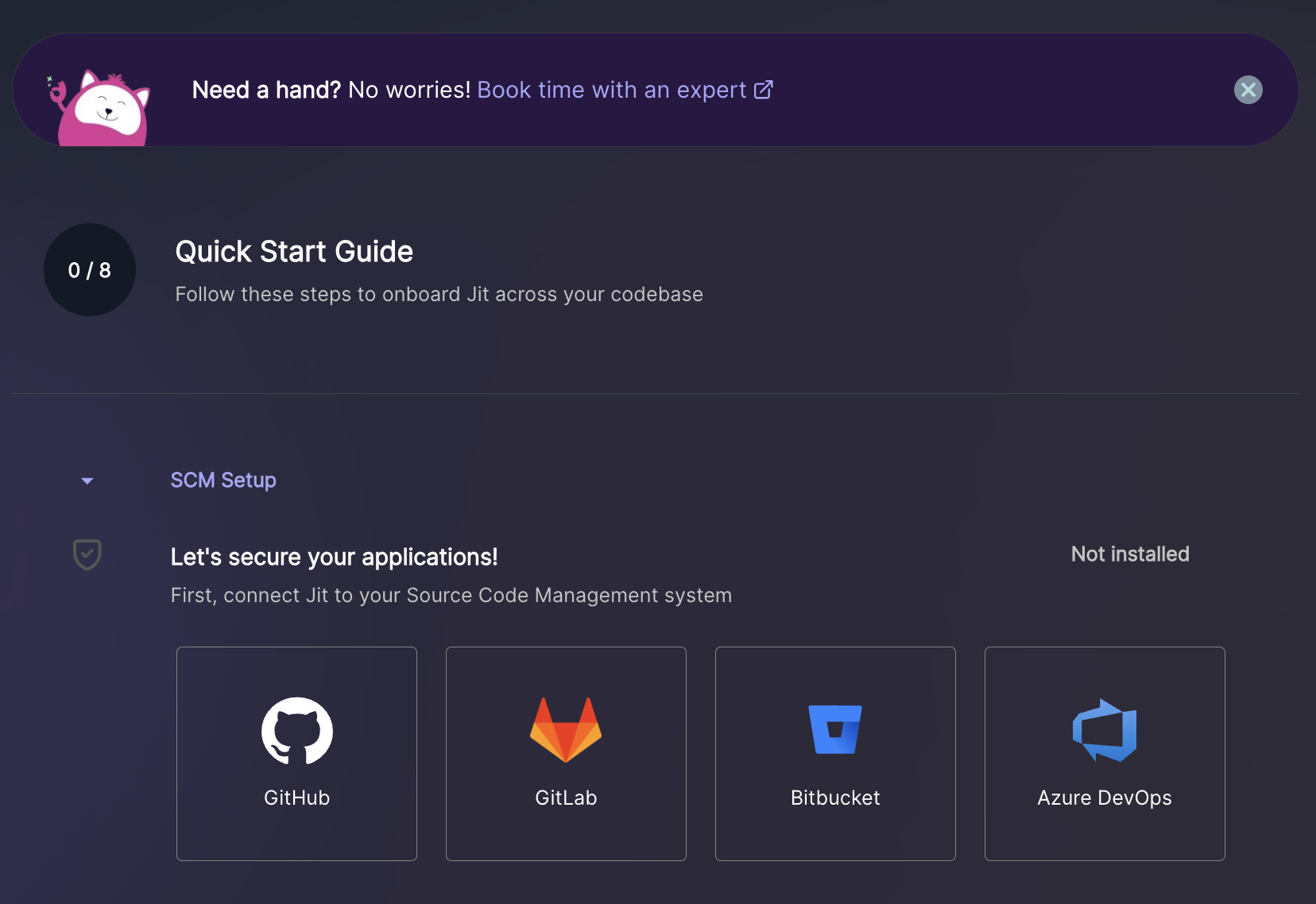
Connect Jit with your Azure DevOps Account
Step 1: Enter Your Azure DevOps Organization Name
To connect Jit with your Azure DevOps account, start by entering your organization name:
- Sign in to your Azure DevOps account.
- Locate your organization name
Your organization name appears in the URL when you access your Azure DevOps organization: https://dev.azure.com/{your-organization} - Copy your organization name and paste it in the input field in the Jit wizard.
Once entered, click Continue.
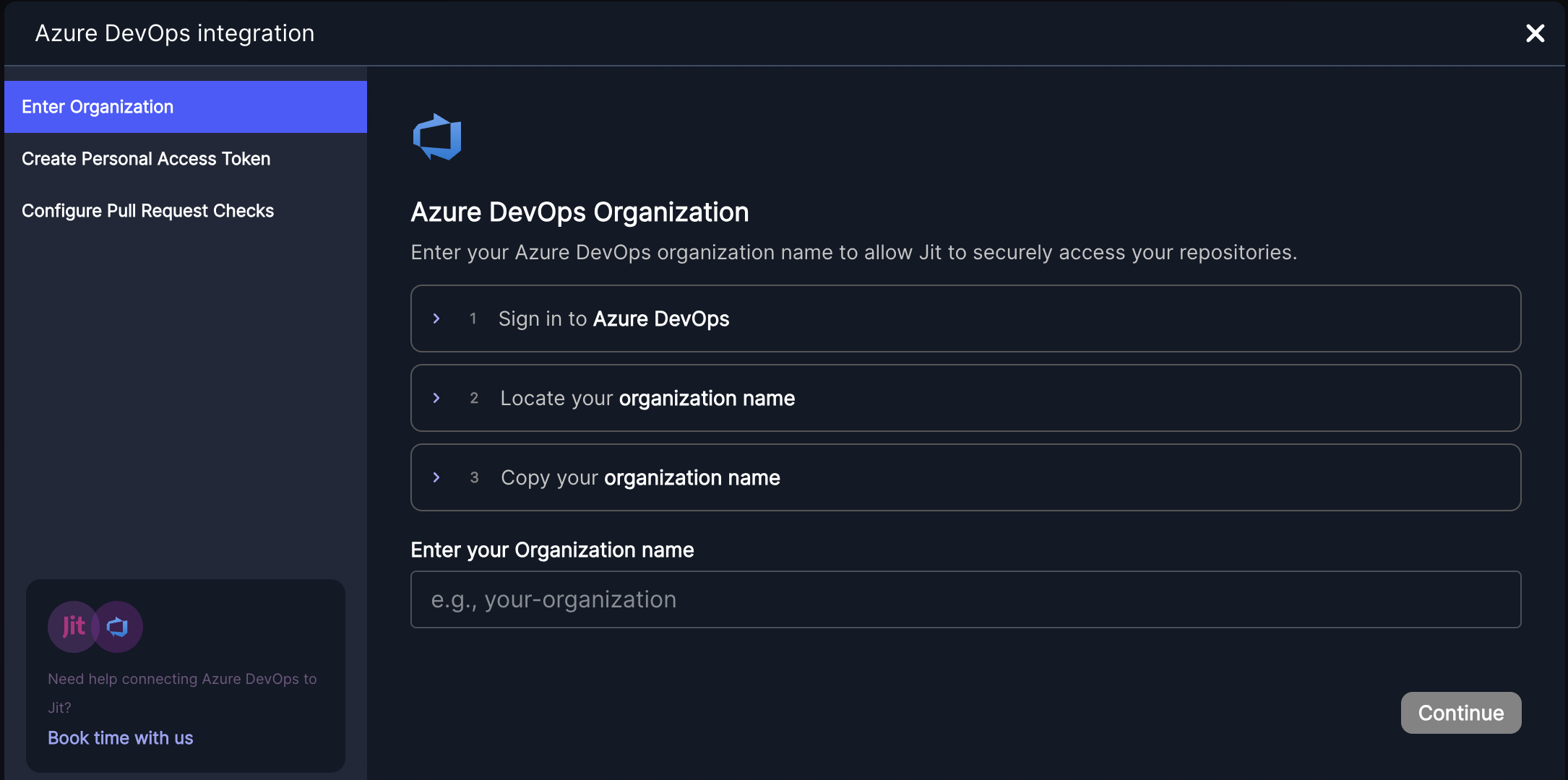
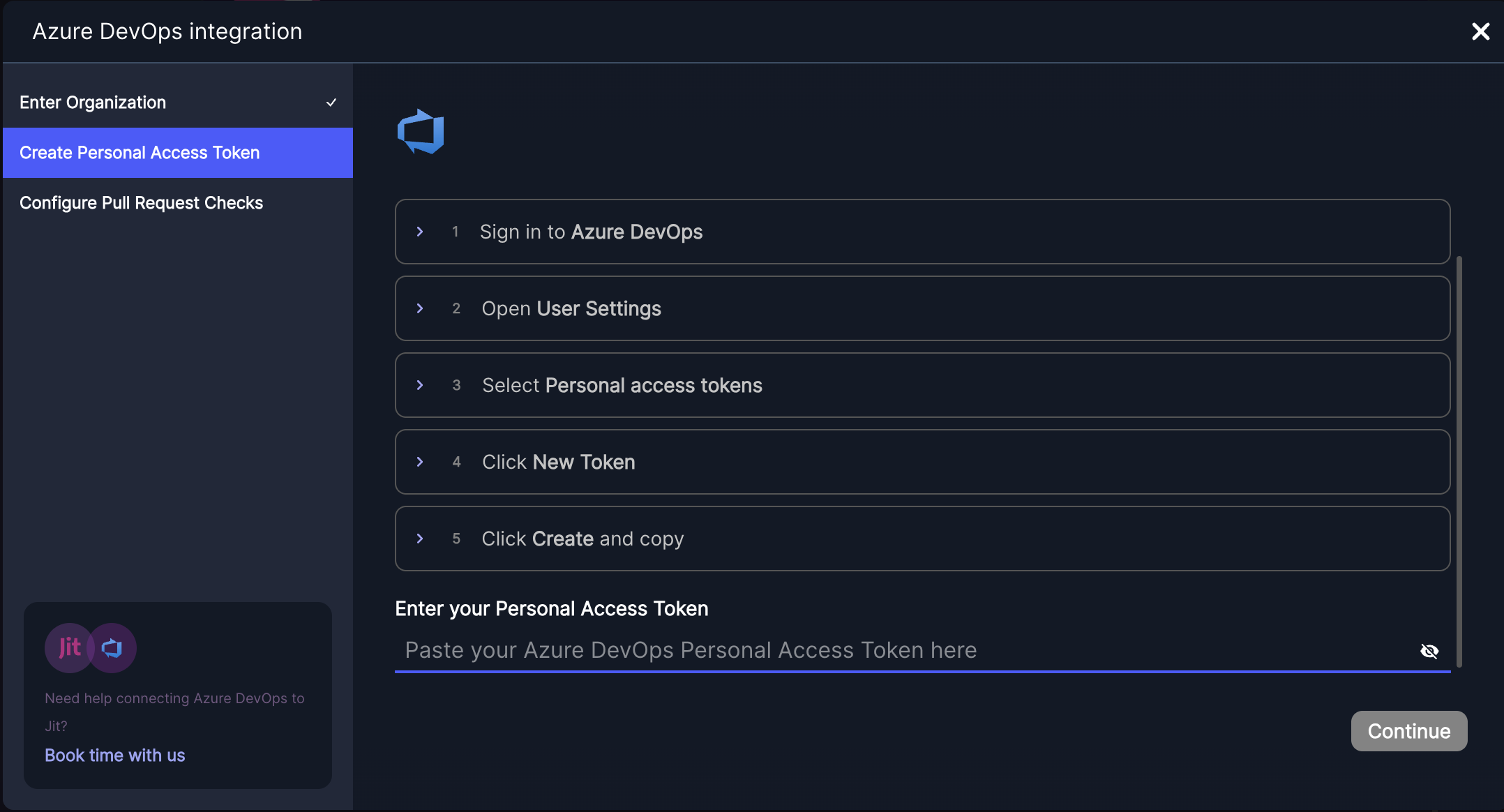
Step 2: Generate Azure DevOps Personal Access Token
To allow Jit to access your Azure DevOps repositories, generate a personal access token:
1.From your home page, open User Settings in the top-right corner
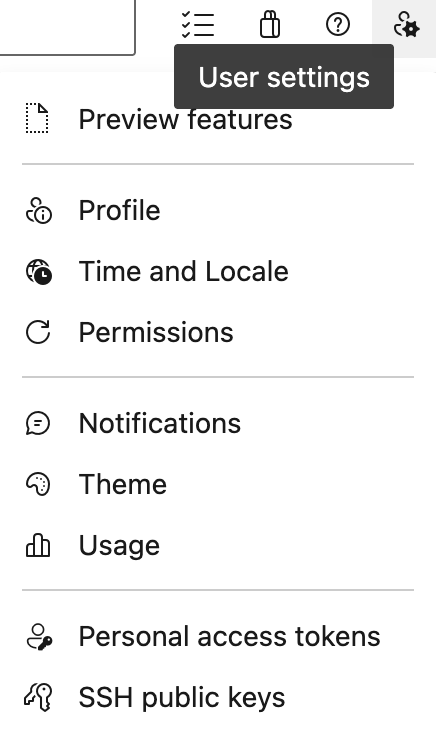
-
In the User Settings menu, select Personal access tokens.
-
Click New Token, enter a name for your token, select your organization, and set the expiration date to 1 year.
- Under Scopes, select "Code: Read & Write".
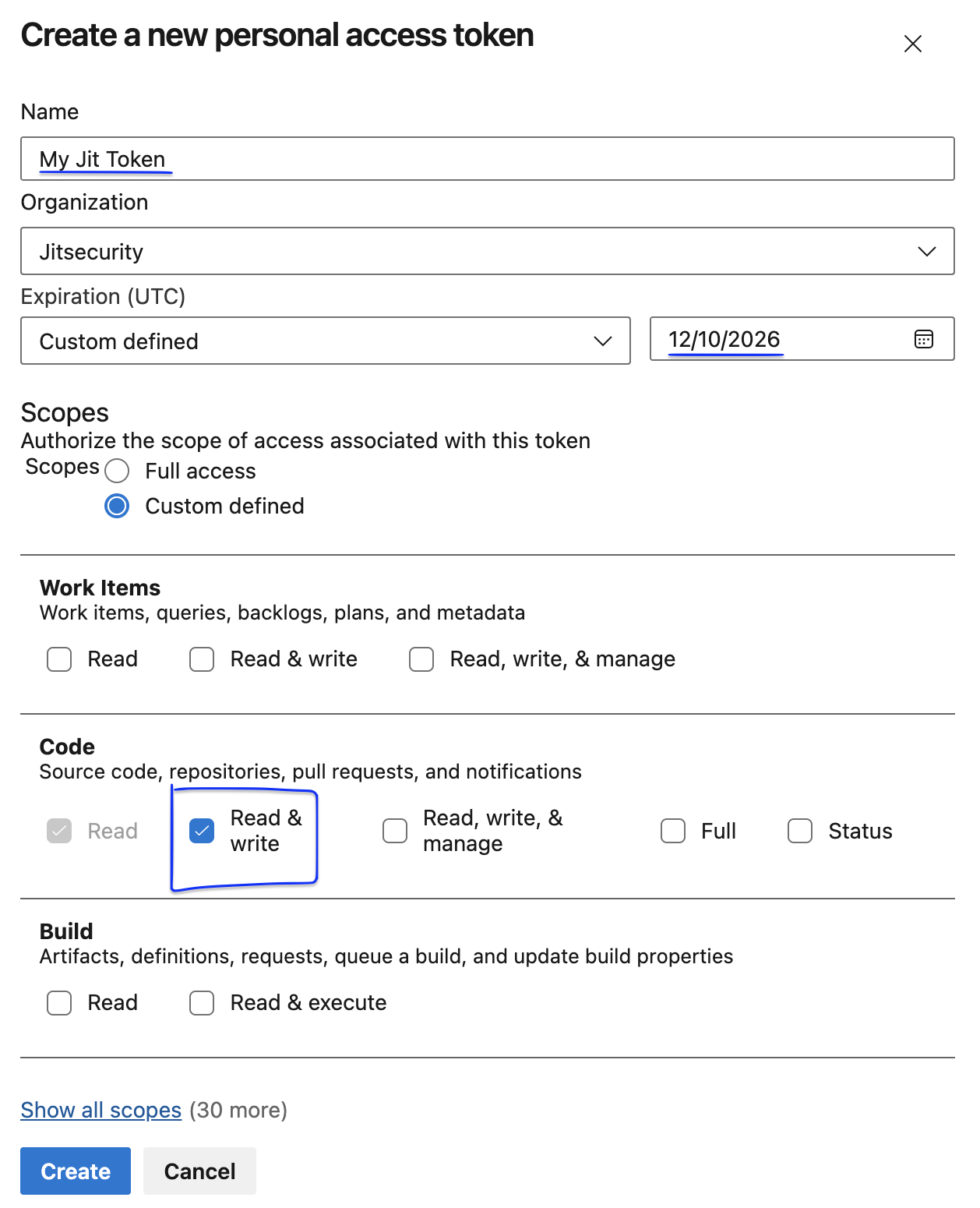
- Click Create to generate the token. Make sure to copy and securely store the token immediately - you won`t be able to see it again once you close this page.
- Paste the generated token it in the input field in the Jit wizard.
Click Continue to proceed.
Step 3: Configure Pull Request Checks
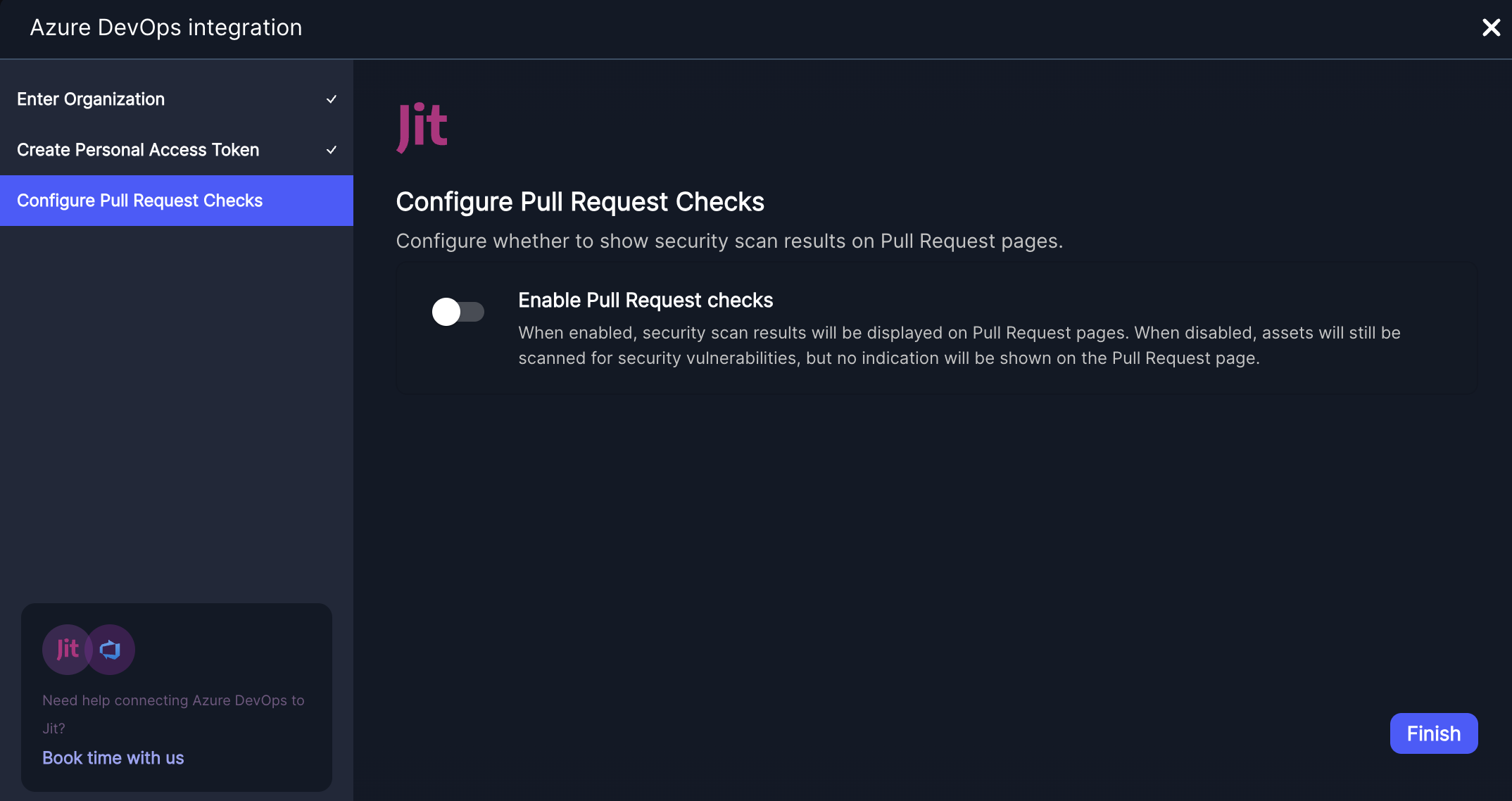
- Enable Pull Request checks (optional).
When enabled, Jit will scan your Azure DevOps Pull Requests for security issues and display the results directly on the PR page. This helps in identifying and addressing vulnerabilities early in the development process. - You can always update this setting later.
Go to Settings → Manage Resources to enable or disable Pull Request checks at any time.
Click Finish to complete the integration.
ℹ️ After completing the integration, you can manage which Azure DevOps repositories Jit scans by navigating to Settings → Manage Resources in the Jit dashboard. Here, you can select or deselect repositories based on your preferences. Repositories that are not selected will not be scanned by Jit.
Jit is now scanning your codebase!
Now that you’ve implemented the integration with Azure DevOps, Jit will automatically begin scanning your codebase (or the repositories you selected).
Specifically, Jit will activate the SCA, SAST, and Secrets detection tools – these scanners will detect known vulnerabilities in your open-source components, security flaws in your custom code, and hardcoded secrets, respectively.
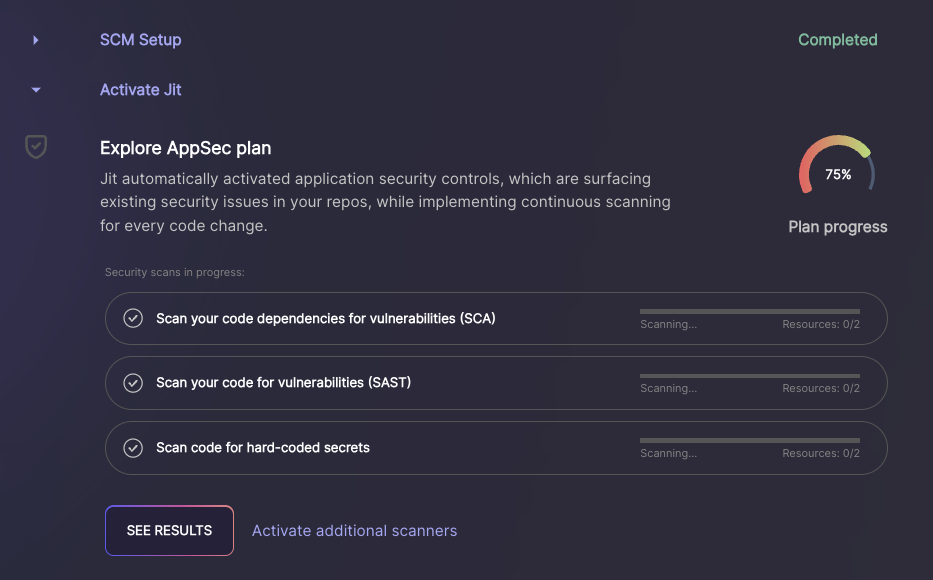
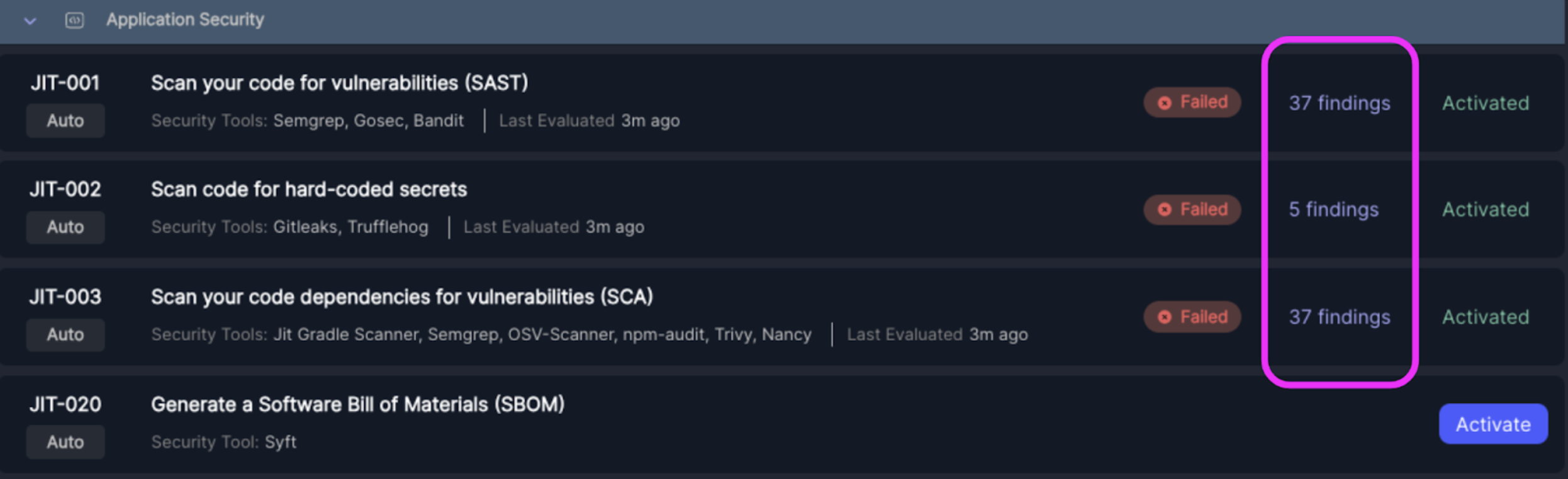
- Once the scans are complete, hit “See Results”, which will bring you to the security scanners that have been activated. If the scanners are marked as "Failed", that means they detected security issues. You may need to wait a few minutes before the findings appear.
- Click on the findings, which will bring you to the Findings page where you can gather more details about the security issues.
Success!
You are good to go.
Click Explore Jit's features to learn how Jit prioritizes your security risks, enables continuous scanning for developers, integrates with a notification system, and much more.
Updated 7 months ago