

CrowdStrike Integration
Overview
The CrowdStrike integration enables Jit to automatically retrieve data from your CrowdStrike Falcon platform.
Once connected, Jit ingests posture findings, misconfigurations, alerts, and asset data through the Falcon API, enriching your security context and powering automated agent workflows.
By default, CrowdStrike data is used to enrich Jit's context graph without adding standalone findings to your Findings page. If you'd like CrowdStrike findings to appear directly in your Jit findings page, contact Jit Support to enable that.
How It Works
Default: Context Enrichment
CrowdStrike data enriches Jit's context graph, powering risk prioritization and correlation across all your connected tools. No standalone CrowdStrike findings appear in the Findings page.
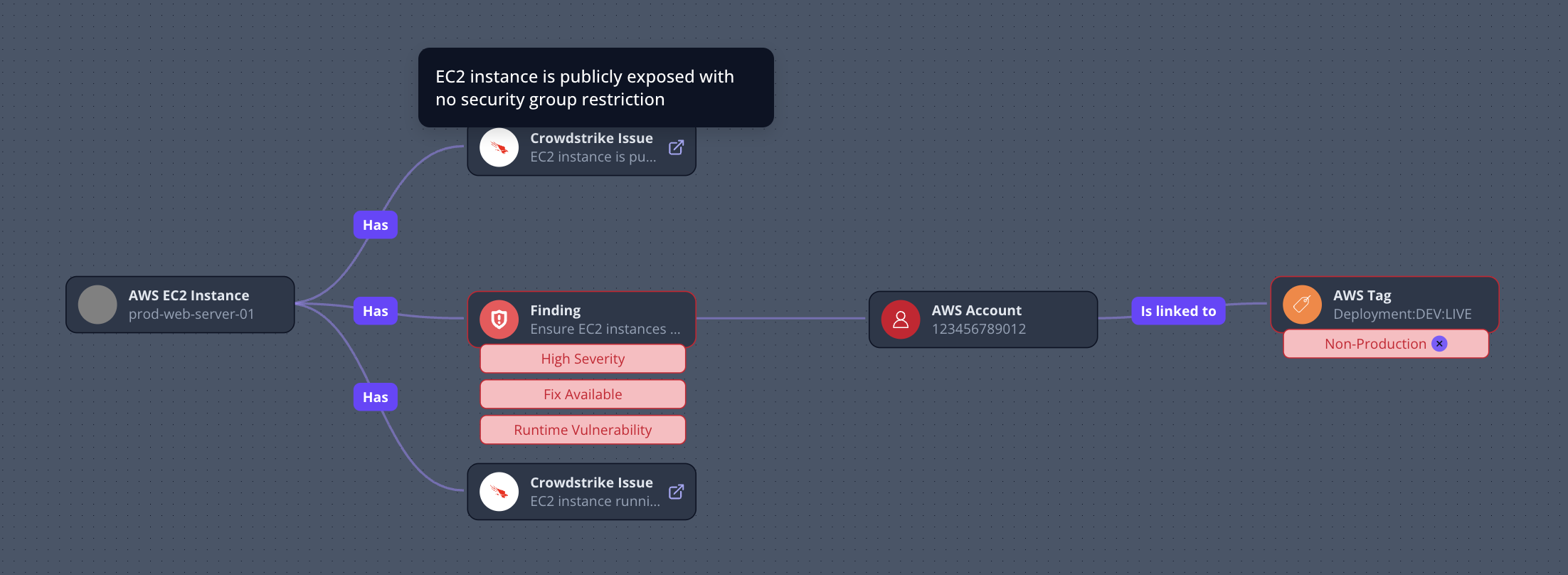
CrowdStrike context enrichment in Jit context graph
Optional: Findings Import
When enabled, CrowdStrike findings appear directly in Jit's Findings page alongside findings from other connected tools, where they can be triaged, assigned, and remediated through Jit's standard workflows.
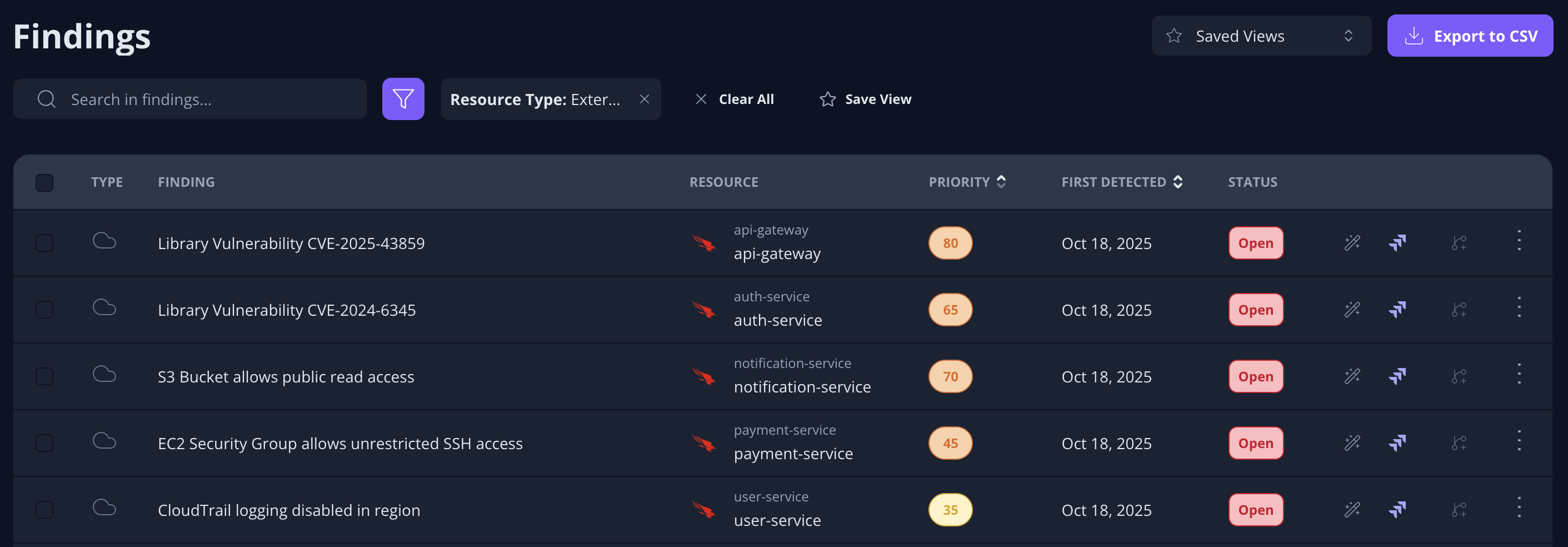
CrowdStrike findings in Jit findings page
To enable Findings Import, contact Jit Support.
Note: Enabling Findings Import replaces Context Enrichment - the two modes are mutually exclusive.
Keep in mind that importing CrowdStrike findings directly may significantly increase the number of findings in your Findings page.
Setup Requirements
Before connecting the integration, ensure:
- You have a CrowdStrike Falcon account
- You can create or edit API Clients and Keys
- You are logged in to the correct Falcon region
- You have a Jit account with admin permissions
This integration uses Client ID, Client Secret, and API Region for authentication.
Required API Permissions
To allow Jit to retrieve data from CrowdStrike, your API Client must include the following permissions, all set to Read:
| Permission | Required Access |
|---|---|
| Alerts | Read |
| CSPM Registration | Read |
| Cloud Security API Detections | Read |
| ASPM Read-Only | Read |
Important: Missing any required permission will prevent Jit from retrieving the relevant data and may cause partial or failed syncs.
How to Retrieve Credentials in CrowdStrike
Follow these steps in the Falcon Console:
-
Log in to your Falcon Console at
https://falcon.<region>.crowdstrike.com -
Navigate to ☰ Menu → Support & Resources → API Clients and Keys
-
Click Create API Client (or open an existing client)
-
Give it a descriptive name, e.g. "Jit Integration"
-
Under Permissions, enable the following (all with Read access):
- Alerts
- ASPM Read-Only
- CSPM Registration
- Cloud Security API Detections
-
Save the client to generate:
- Client ID
- Client Secret (shown only once — copy immediately)
-
Determine your API Region from your console URL:
Console URL Region Value falcon.crowdstrike.comapifalcon.us-2.crowdstrike.comapi.us-2falcon.eu-1.crowdstrike.comapi.eu-1falcon.laggar.gcw.crowdstrike.comapi.laggar.gcw
Connecting CrowdStrike to Jit
- Go to the Integrations page in Jit
- Select CrowdStrike
- Fill in:
- Client ID
- Client Secret
- API Region
- Click Continue
- Jit will validate the credentials and activate the integration
Once connected, Jit will begin syncing data automatically.
Need Help?
If you need assistance configuring the integration or enabling Findings Import, contact Jit Support.
Updated 5 months ago